In Step 6: Generate Proposal, you can add employer contributions and generate Proposal documents in both spreadsheet and PDF formats. If you download the spreadsheet, you can edit it in Microsoft Excel®. Once you’re done making changes, print the final document to present to the employer.
If the Proposal document is missing any products, you will need to log in to your Broker account, add them, and re-download it. See this article for more on adding products to a Proposal.
IN THIS ARTICLE
Steps to add employer contribution
Steps to set the plan order
Steps to download the Proposal document
Proposal overview
Steps to add employer contribution
Before downloading the Proposal document, you can add the employer's contributions as fixed dollar amounts or percentages of the total monthly premiums. You can set a contribution for each plan, and for each Employee Class when the Employer uses classes, or apply one Defined Contribution to every plan.
Set a contribution for a plan
Open the Proposal and go to Step 6: Generate Proposal. On the New/Renewal Products or Current Products tab, find the plan and select the employer contribution icon in the Actions column. The Assign Employer Contribution window opens for that plan and class.
If a plan is offered to more than one Employee Class, a row for each class appears under the plan. Each class row has its own employer contribution icon, so you can set a different contribution for each class.
Flip the Contribution Type switch to choose Dollar Amount or Percentage. Enter the contribution for each tier you want to include in the Proposal document, then select Save.
Contributions for current products carried over from a closed Proposal are filled in from that Proposal and can be viewed but not changed.
Apply one contribution to all plans
To use the same contribution for every plan, select the Employer Contribution icon next to the Census button and set a Defined Contribution.
While a Defined Contribution is set, contributions can't be set for individual plans. If you've already set contributions for individual plans, Quote+ asks you to confirm before replacing them.
How contributions appear in the Proposal
The Medical ER Contribution tab displays what the Employer pays versus what the Employee will pay. It also includes monthly premium comparisons between current plans and both renewal and new option plans.
Each plan has an Employer Contribution row showing the dollar or percentage amount for each coverage tier, and Employer Pays is calculated from that plan's own contribution. When a Defined Contribution is set, every plan shows that amount.
Steps to set the plan order
You can choose the order plans appear in within each coverage line. This lets you put the plan you recommend first so the employer sees it right away.
In the Proposal, go to Step 6: Generate Proposal and open the New/Renewal Products tab. Select and drag the handle to the left of a plan to move it to a new position within its coverage line. Each coverage line has its own order, so reordering Medical plans doesn't change the order of Dental or Vision plans.
The order you set appears on every tab that lists plans for that coverage line, in both the Excel and PDF versions of the Proposal. Changing the order doesn't affect pricing, employer contributions, or tier information.
If you don't set an order, plans appear in the default order.
Steps to download the Proposal document
To start, you need to add products to your Employer's Proposal. See this article for more information.
- Go to the Proposals page.
- On the Proposals page, find the Proposal you want to download. Select the kebab menu, then choose Edit.
- In the Proposal, go to Step 6: Generate Proposal.
- Select the Proposal button to download an Excel spreadsheet of the Proposal’s products.
You can change the Proposal Template by selecting the arrow next to the Proposal button. Proposal Templates change what information is shown and how it’s organized in the Proposal. Learn more about Proposal Templates.
- (Optional) To download the Proposal’s products as a PDF, checkmark the Print as PDF box. Then, select a Proposal Template (as shown in Step 4) to download the PDF file.
After downloading the Proposal, open the file to review its contents. Each coverage line includes the following tabs (Medical shown as an example):
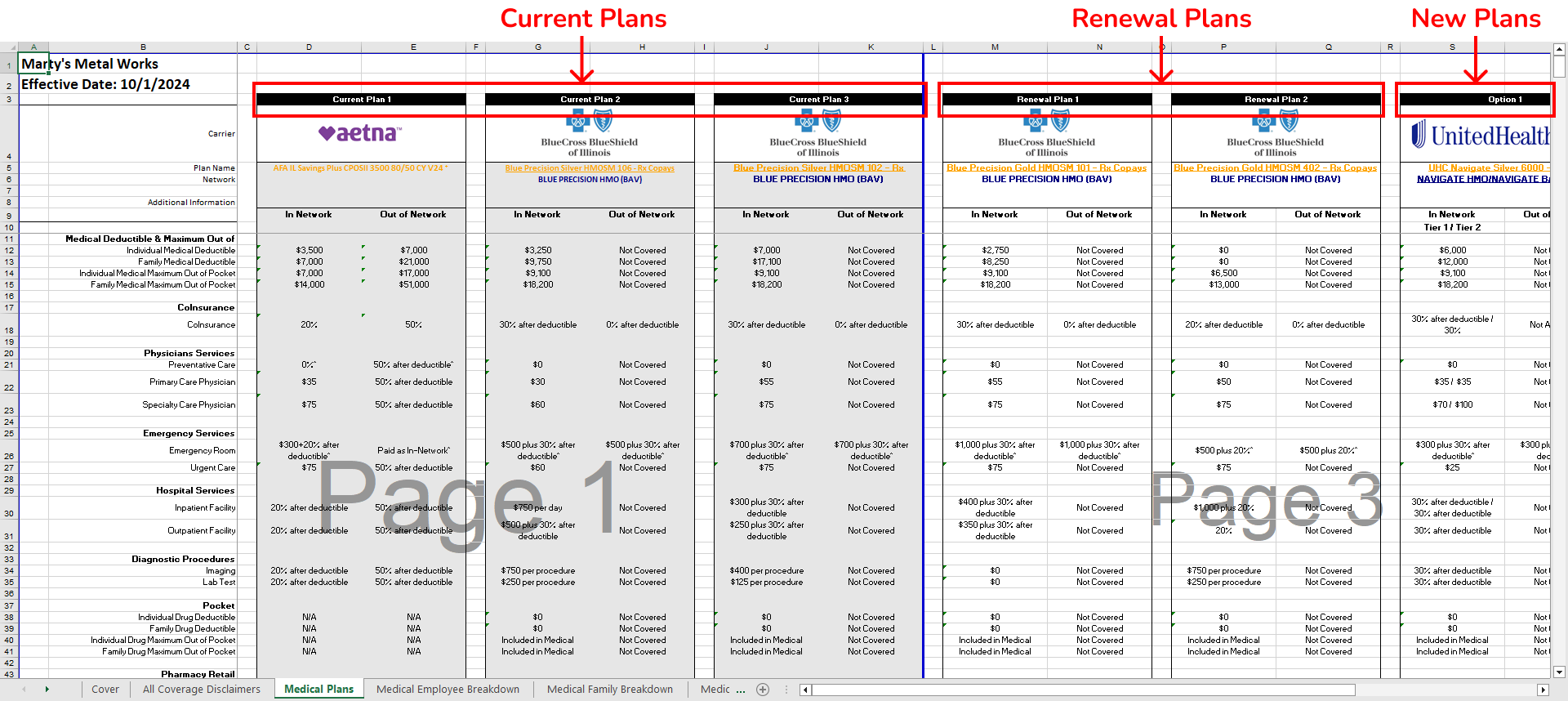
- Medical Plans: Provides you a relative composite rate based on Illustrative Rates for an Underwritten Product.
- Employee Breakdown: Shows the cost based on age-banded rates (if applicable) and composite rates for the Employee and Dependents combined, for current plans as well as renewal and new plan options.
- Family Breakdown: Shows the cost based on age-banded rates (if applicable) and composite rates for each person, for current plans as well as renewal and new plan options.
Proposal overview
After downloading the Proposal, open the file to review its contents. You will notice that it’s organized into 15 tabs:
- Cover Page
- All Coverage Disclaimers
- Medical Plans
- Medical ER Contribution
- Medical Employee Breakdown
- Medical Family Breakdown
- Medical Carrier Disclaimers
- Medical Rate Tables
- Dental Plans
- Dental Employee Breakdown
- Dental Family Breakdown
- Dental Carrier Disclaimers
- Vision Plans
- Vision Employee Breakdown
- Vision Family Breakdown
- Vision Carrier Disclaimers
Plans on each coverage line's tabs appear in the order you set on Step 6: Generate Proposal. See Steps to set the plan order.
Cover Page
A cover page is inserted into each Proposal with the following details:
- Agency Logo - Automatically populates if you uploaded your logo under Agency > Agency Details. Otherwise, you can manually add it in the Excel file.
- Proposal Name
- Prepared For
- Prepared By
- Preparation Date
- Effective Date
Current/Renewal Plans
The Proposal shows the current plans, renewal plans, and new plan options. The monthly premium for each current plan is compared against each renewal plan and new plan option. The comparisons consist of both dollar and percentage differences.
Age-Banded Medical Rates
Age-banded medical rates are included where they are available for current plans and for each renewal and new plan option. On the Medical Rate Tables tab, current plans appear first and are labeled Current Plan.
For age-banded plans, each Employee's and Dependent's age appears next to their name in the Employee Breakdown Costs section, so you can see which age-band rate applies to each person. Ages are calculated as of the plan's effective date. If an Employee or Dependent is missing a date of birth, the Proposal flags it so you can add it before quoting.
Note: Age-banded rates for current plans come from the rates saved when the previous Proposal was closed. Current plans without saved age-banded rates don't appear on the Medical Rate Tables tab.